
Organisations & roles

Server monitoring for multiple teams, clients and organisations

Salix Monitor 360 lets one server monitoring account reflect real organisational boundaries. Start with a main organisation for signup, billing and subscription, then use paid plans to add linked sub organisations for customers, departments, teams or locations. Each can have its own admins, users, monitors, agents, alerts, reports and dashboards while usage rolls into the main plan limits.

Main organisation + sub organisations

Structure monitoring around how your business actually works

Use sub organisations when teams, services or customer groups need their own day-to-day workspace. Billing, plan limits and account-level oversight remain with the main organisation.

A practical organisation model

Free accounts begin with one main organisation. Paid tiers can add linked sub organisations as separate operational spaces, each with its own admins, users, monitors, agents, alerting, teams, dashboards and reports when you need clean boundaries.
Main organisation with linked sub organisations A main organisation owns signup, billing and plan limits. Three linked sub organisations sit underneath with their own admins, users, monitors, agents, alerts and reports. Main organisation signup · billing · plan limits Sub organisation #1 own admins and users monitors · agents · alerts Sub organisation #2 separate workspace reports · teams · checks Sub organisation #3 controlled access local operational view usage rolls up to the main limits

Billing and limits stay with the main organisation

The subscription belongs to the main organisation. Any monitors, agents and users created in sub organisations count towards the main organisation’s plan limits.

  • Signup: the first account creates the main organisation.
  • Billing: upgrades and subscriptions are managed from the main organisation.
  • Limits: sub organisation usage rolls up into the main organisation allowance.
  • Oversight: main organisation admins can see the wider picture across linked organisations.
  • Separation: each sub organisation keeps its own day-to-day workspace.
  • Dashboards and reports: each organisation sees its own live health, incidents, posture and reporting views.
  • Navigation: authorised admins can switch between linked organisations without mixing their operational data.
Simple example: if your plan allows 50 monitors and two sub organisations use 8 and 5 monitors, your main organisation has 13 of its 50 monitors in use.

Main admins keep oversight

Main organisation admins manage subscription, capacity and the overall structure. They can review combined health and usage, then drill into each linked organisation’s dashboard, reports, monitors, agents and incidents when needed.

Sub organisation admins manage their area

A sub organisation can have its own admins and users, giving local teams controlled access to manage their monitors, agents, alert rules, teams, dashboards and reports without seeing unrelated workspaces.

Clear boundaries, one subscription

Sub organisations keep data tidy and permissions focused, while teams clarify ownership and the organisation switcher makes moving between authorised workspaces straightforward. Subscription, billing and plan limits remain under the main organisation.

Own logo, colours and footer

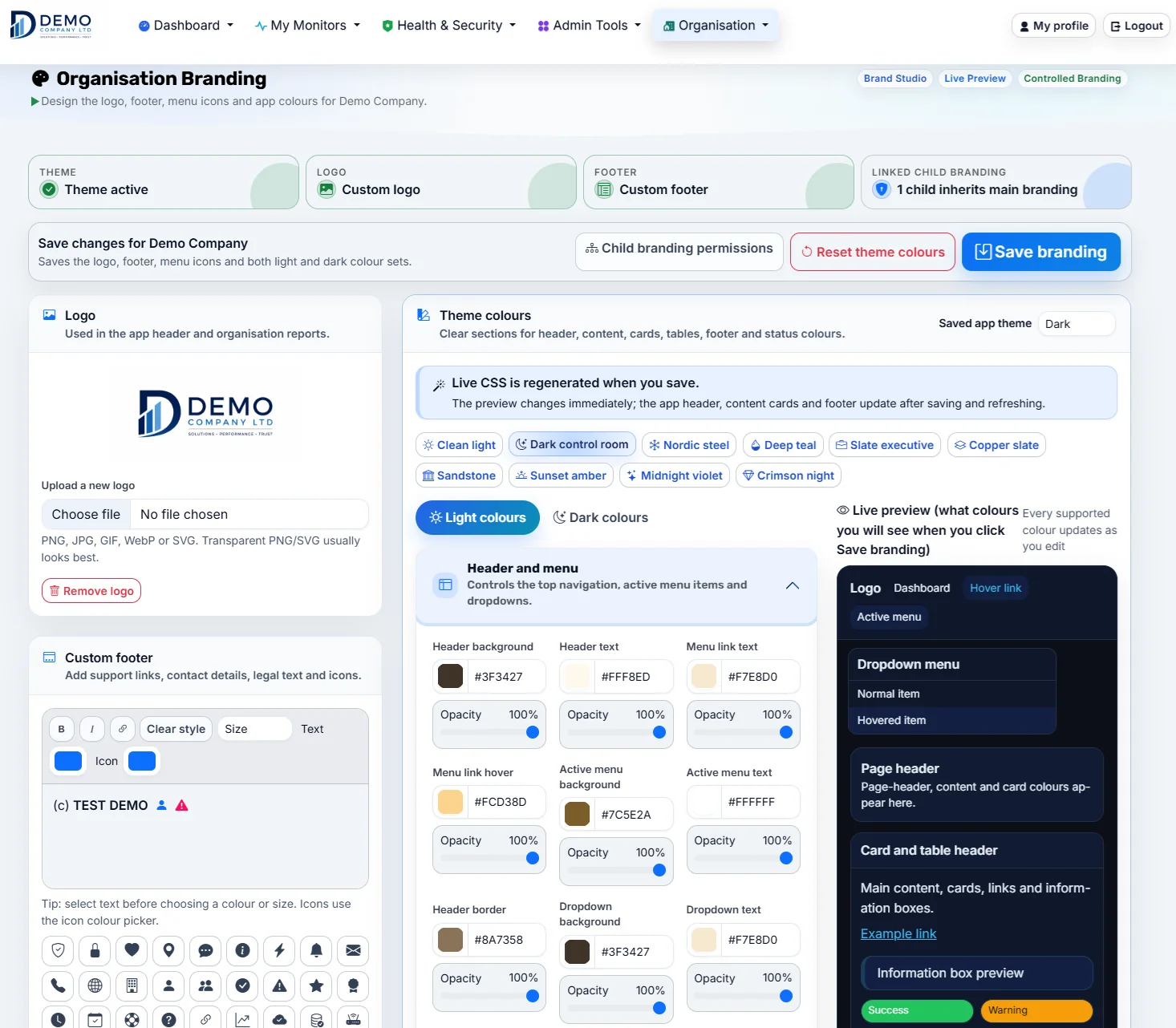
Organisation owners and admins can brand the logged-in experience so their workspace carries the right logo, colour scheme and footer message for their team or client environment.

What organisation admins can do

Organisation admins look after their own part of the world - users, alerts and reporting - without needing whole-app access.

Manage people

  • Invite new team members and remove old accounts
  • Assign roles so the right people can manage monitors and alerts
  • Keep contact details and notification preferences tidy
  • Use simple Members, Teams and Invites screens to keep things organised
  • See who did what using the organisation audit logs
  • Control the organisation logo, colour scheme and footer text from branding settings

Shape the signal

  • Maintain monitors for key services, hosts and internal systems
  • Set up alert rules and channels that match how the team works
  • Use incidents to keep track of what happened and how it was fixed

Tell the story

  • Pull organisation-level reports for uptime and reliability
  • Show posture and vulnerability trends for their own organisation
  • Share clear charts with business stakeholders

Inside organisation admin

Organisation tools shown in the current app

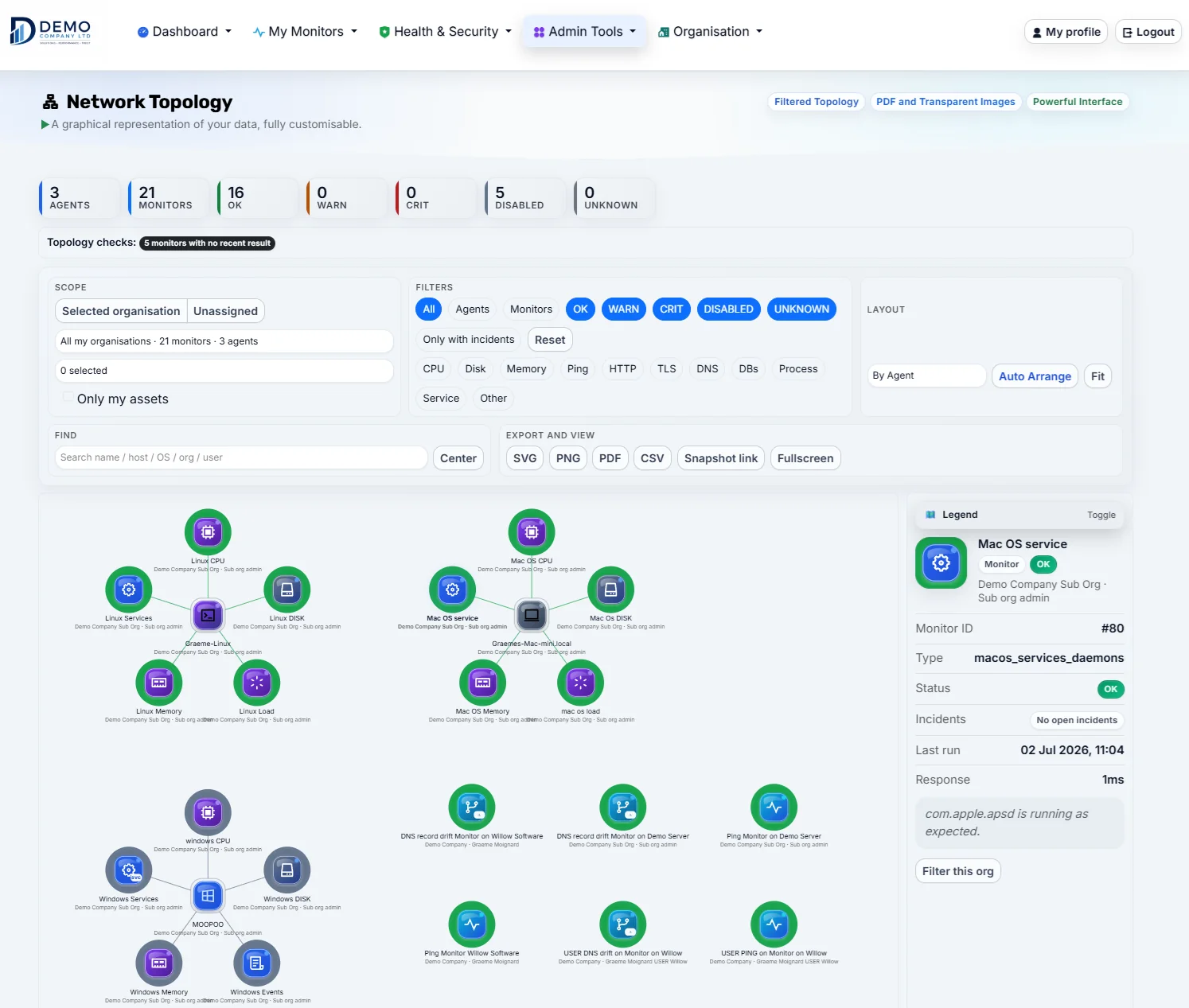
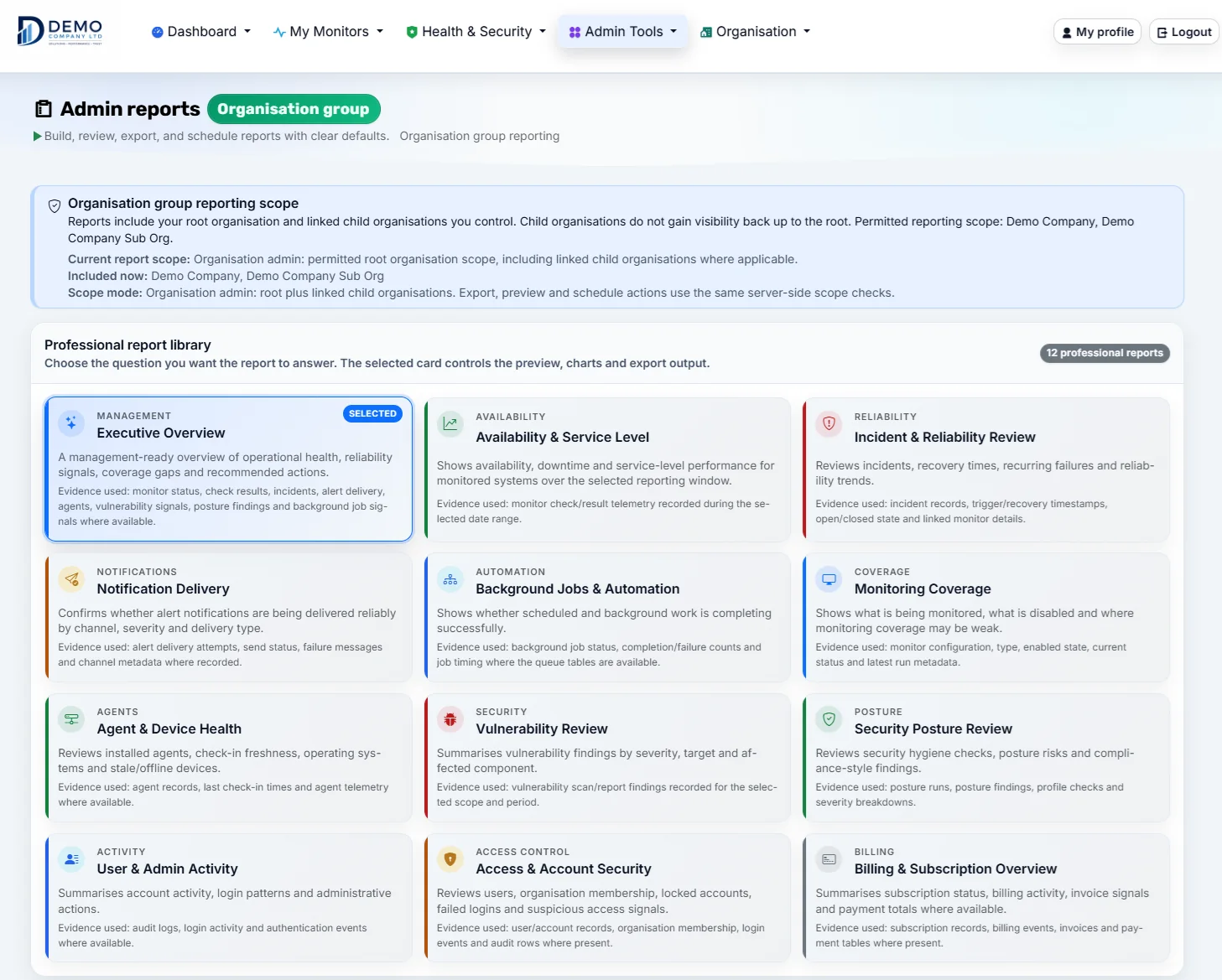
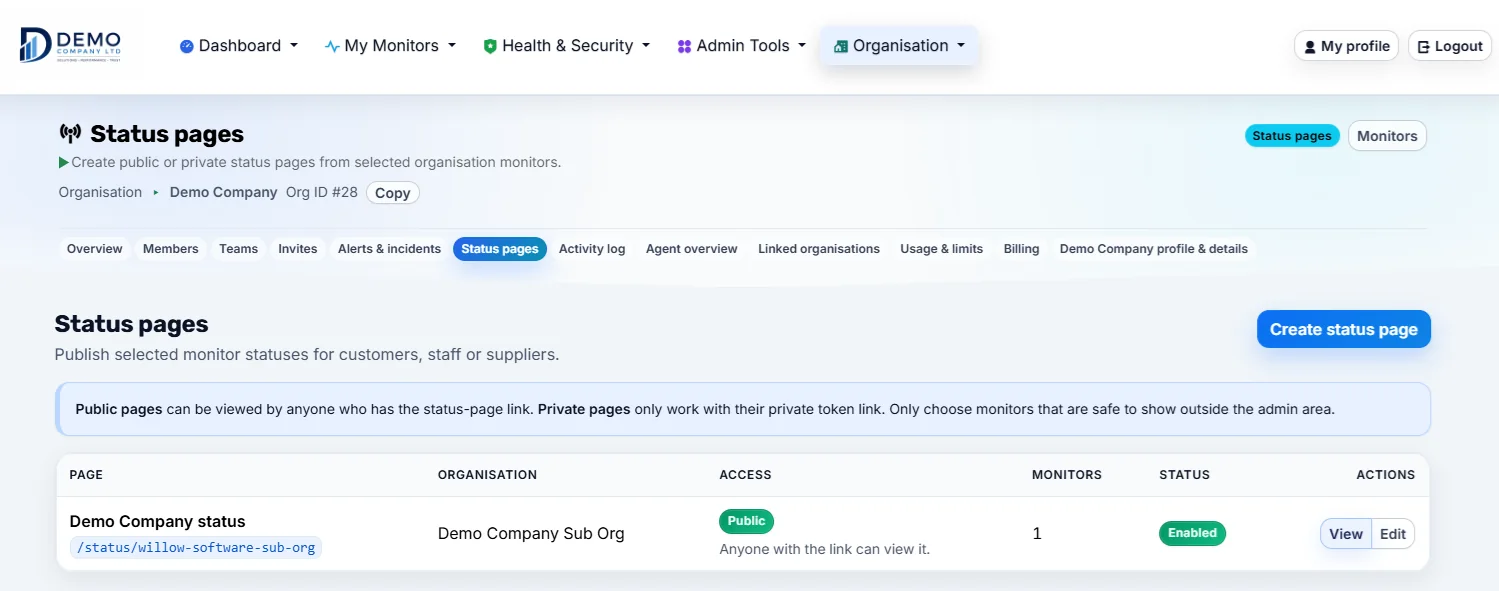
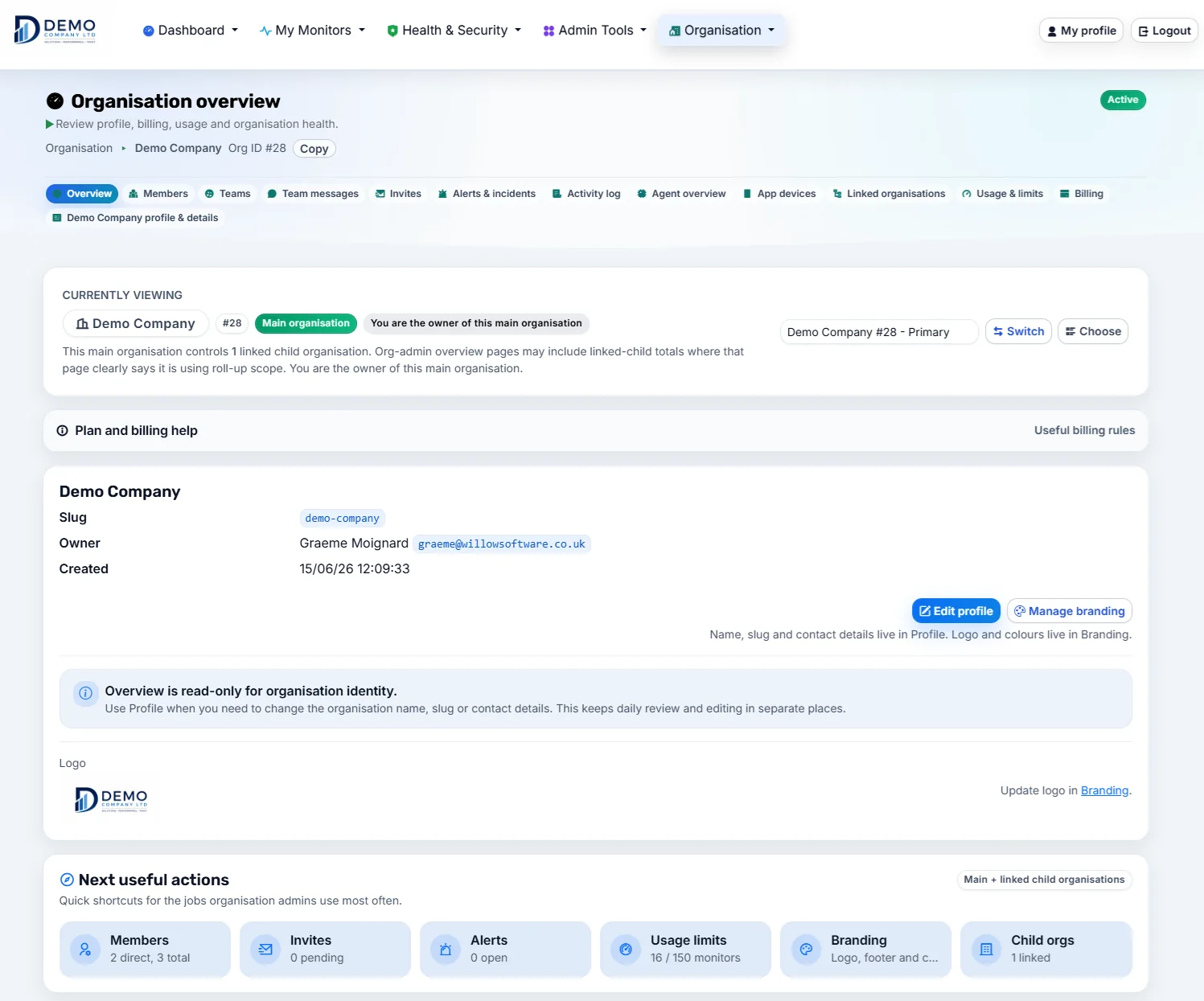
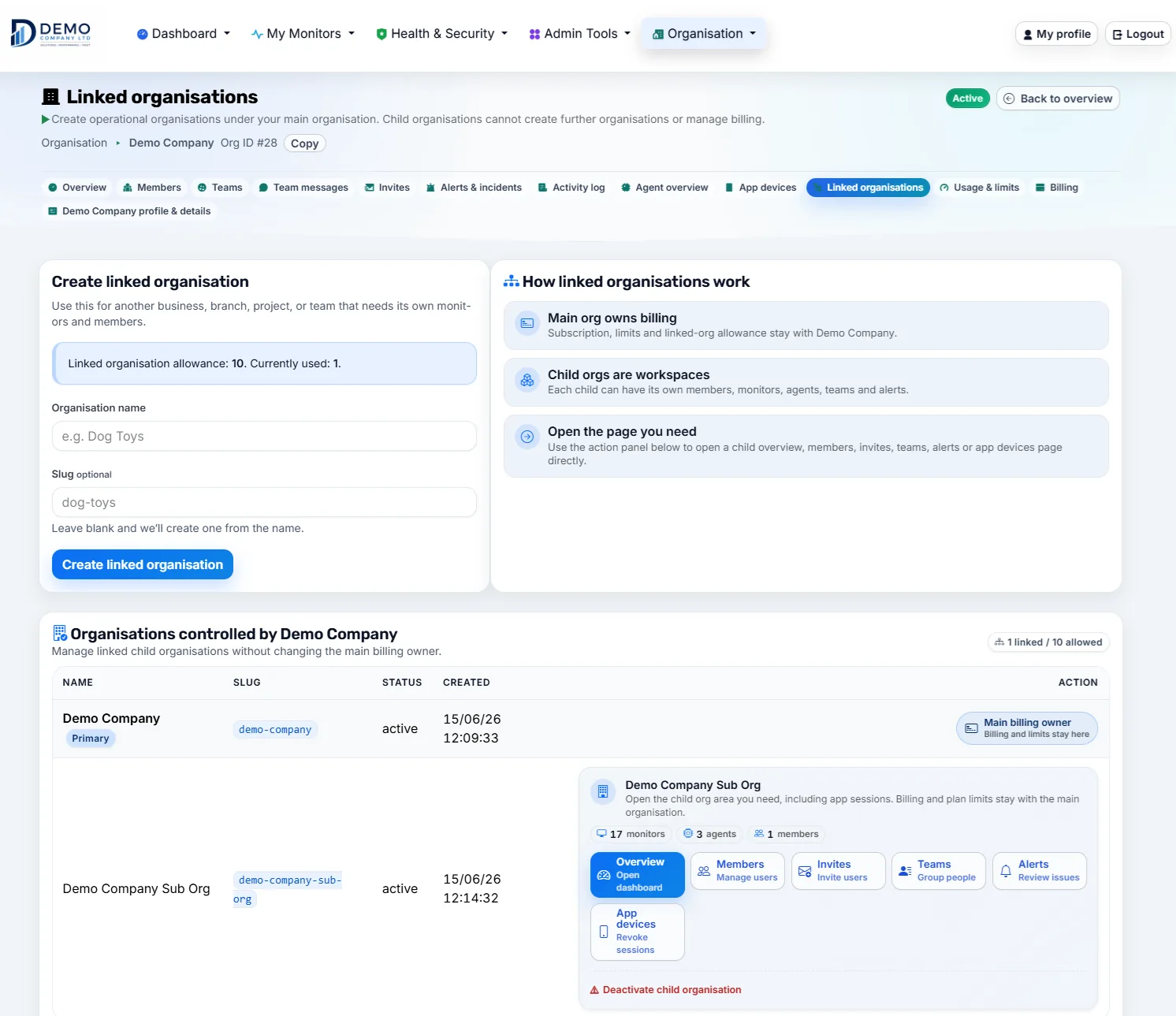
A larger look at the areas organisation admins use most: overview, linked organisations, topology, reports, branding, status pages and access management.

Organisation overview page
Organisation overviewAdmin home
Linked organisations page
Linked organisationsMain and sub orgs
Organisation topology page
Organisation topologyLinked structure
Organisation admin reports page
Admin reportsEvidence
Organisation branding page
BrandingLogo and colours
Organisation status pages management
Status pagesPublic updates

Perfect for multi-team companies

Mirror your real-world structure - by product, department or region - and give each area a view that matches what they actually run.

Ready for paid multi-organisation accounts

Give each client, department or location its own sub organisation and local admins, while your main organisation keeps the subscription, plan limits and overall view. Standard, Professional and Business Unlimited give you clear monthly options as your usage grows, with heavier normal business use covered by the Business Unlimited fair-use wording.